Ftrack Event Server
This ftrack event server is hosted on the workstation 192.168.0.153. It runs continuously and monitors ftrack for certain events or actions. Certain events trigger certain scripts to run automatically in the background. For example, creating folders on disk when a task is created in Ftrack.
The event server also hosts actions, which require the user to actively choose an action from the action menu in ftrack.
What scripts are triggered by the event server?
- Add version to list
- If an asset version’s status is updated to “Pending Internal Review”, then add it to the Dailies Review List. If the time of status update is before 10 am, then add it to the list of the same date, else add it to the next day’s review list.
- Create Project folder
- When a new project of type “VFX Schema” is created on Ftrack, a project folder is created on disk. The project folder follows the LocoVFX project template structure. More details found here .
- Assign task status
- This event sets the task status based on the asset version. So if a particular asset version’s status is set to ‘Approved’, then the status of the task of that version is also set to ‘Approved’.
- Status Handler
- This event is only triggered for animation or lighting tasks. If an animation task’s status is set to ‘Ready for Lighting’ the assigned user of the Lighting task is sent a message on slack. Similarly, if a lighting task’s status is set to ‘Ready for Comp’, the assigned user of the compositing task is sent a message on slack.
- Create Task Folder
- This event creates a task folder on disk (along with the shot structure, if a shot structure does not exist). It also copies the template file of that task into the task folder and names it appropriately
- Set task thumbnail
- If the status of a task is set to ‘Cut’ or ‘On Hold’, set the appropriate thumbnail icon for that task.
What actions are hosted on the event server?
- Batch Create
Batch create shots in Ftrack. This action is available for at the project, sequence and shot level.
- Clear Job Queue
Clears all pending user jobs in the ftrack job queue. This action is available for all ftrack elements.
- Client Review Sync
Syncs a client review session with the Ftrack cloud account. This action is only available on the client review session.
- Client Feedback Sync
Syncs the feedback from the Ftrack Cloud client review session with the local session. This action is only available on the client review session.
- Upload Media
Provides a UI to upload media for dailies review. This action is only available for ftrack tasks.
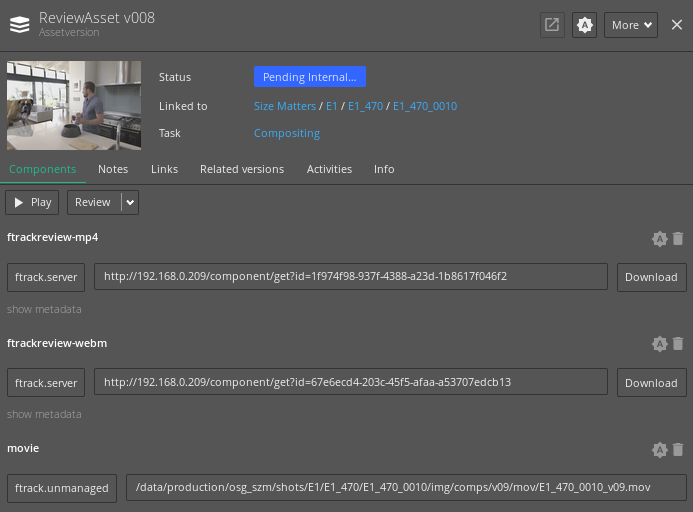
- Update RV Component
This action is only available on an asset version. Adds a ‘movie’ component to the asset version, so that the media is playable in RV. If an asset version is missing this component, the media will not play in RV.
Who runs the event server?
The event server is nothing but a python script located at /data/production/pipeline/linux/ftrack-events/server.py.
As long as this python script is running, the ftrack events and actions will be monitored. So we need
a process that will continuously run this event server script and monitor and log it’s behaviour.
A supervisor daemon is a process that does this for us. The details of the script are included in the
supervisord config file located at /etc/supervisord.conf
We start the supervisord by running:
service supervisord start
This is run in the terminal as a “root” user.
Similarly, we can stop the supervisord by running:
service supervisord stop
The supervisor daemon automatically starts itself when the workstation boots up. The logs of the ftrack
event server are written to /tmp/ftrack_event_server.log