Rotoscoping Pipeline
Note
Before you start anything, make sure that ftrack-connect is running.
Artist Workflow
Open a scene file
Once an artist is assigned a rotoscoping task, the artist must navigate to the Ftrack task and open the Nuke scene file from the actions menu.

When the application launches, the artist timer will start in Ftrack. This tracks the time the artist spends on the task.

The timer stops when the application is closed.
Nuke File Location
When the artist starts nuke from ftrack, the corresponding shot’s nuke script will be launched. The file should be called <shotname_version>.nk and will be located at:
/data/production/<show>/shots/<sq>/<shot>/scene/rotoscoping/
For example the location of a nuke file for shot ‘001_0010’ in sequence ‘001’ for project ‘test’ will be:
/data/production/test/shots/001/001_0010/scene/rotoscoping/001_0010_v01.nk
Nuke File Structure
A nuke file for a brand new shot must have the following nodes.
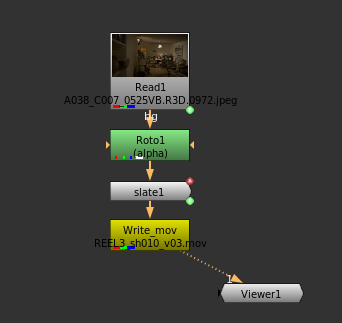
- The read node
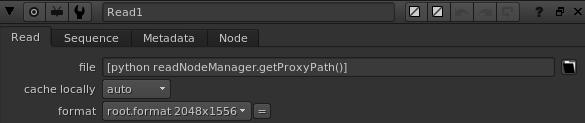
The python script in the file attribute calculates the correct path of the proxy image. Usually this will be:
/data/production/<show>/shots/<sq>/<shot>/img/plates/proxy/<filename>.<frame>.jpeg
- The slate
The slate adds shot and user information to the movie.
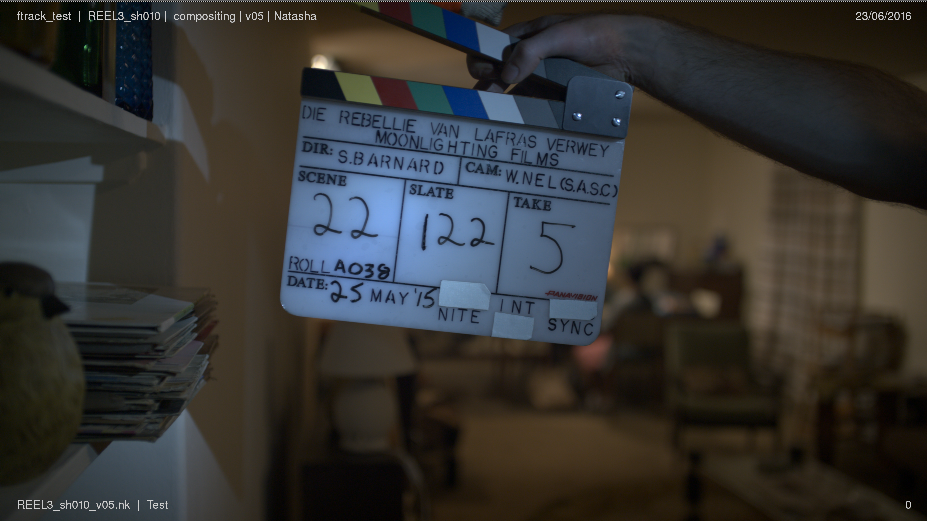
A bunch of python scripts in the slate node pull in the shot and artist information from ftrack and populate the slate. You shouldn’t have to touch any of these scripts, just make sure the slate node is connected to your write_mov node and it should work for you.
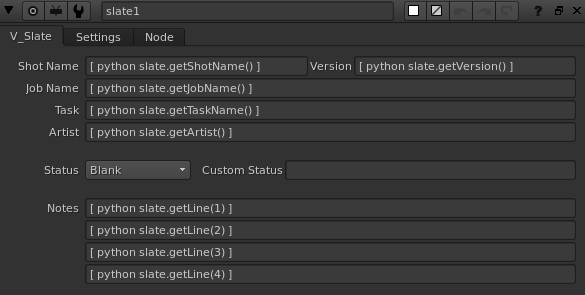
- The write node

The Write_mov node will output a movie for internal reviews. The python script in the file attribute calculates the correct path for your output movie. Usually this should point to:
/data/production/<show>/shots/<sq>/<shot>/img/roto/<version>/mov/<filename>.mov
Note
Make sure the codec is set to Avid DNxHD Codec, so that the shot can viewed correctly for dailies.
Saving a New Version
To save a new version, simply click on “LVFX-Save New Version” option under the File menu or hit Alt+Shift+S
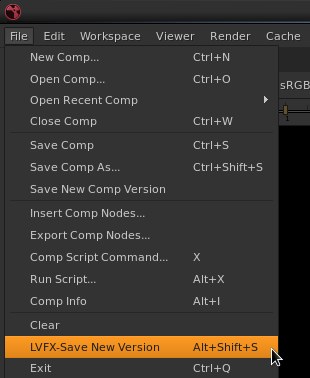
This will save a new version of the file using the correct naming convention.
Submitting To Dailies
The Write_mov node has a tab called Dailies with a ‘Submit to Dailies’ button.
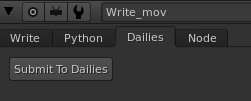
When an artist wishes to submit the movie to dailies, they can click this button. This will render the shot and then encode and upload the movie to Ftrack. This process can take a while, so be patient!
Starting and Stopping the Ftrack Timer.
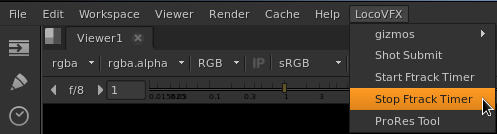
As mentioned above, the artist timer for the task starts when the application is launched. Sometimes, an artist may want to leave their nuke session open overnight (if a render is on going) but may not want to keep their timer running. Similarly, an artist may want to restart the timer without having to restart the application.
For instances such as these, the artist can use the ‘Start Ftrack Timer’ and ‘Stop Ftrack Timer’ scripts located in the ‘Loco VFX’ menu in the nuke menu bar.