Syncing Files
Syncing large number of files
Use the file_sync command to sync files between the 2 studios. This command can be used to sync a single file or a folder containing multiple files.
In order to use the command, first open a terminal by going to Applications -> System Tools -> Terminal
Syncing a single file:
file_sync -file <file_path>
eg. file_sync -file /data/production/osg_szm/assets/character/Giant_Dog/rigging/publish/Giant_Dog_v10.mb
If this command is run in JHB, it will sync the specified file to CPT and vice-versa
Note
The destination can be specified explicitly by the -dest flag. Example file_sync -file <file_path> -dest CPT or file_sync -file <file_path> -dest JHB. However, by default -dest is defined by the “STUDIO” environment variable.
This variable is specified in /data/production/pipeline/linux/common/var/env file.
STUDIO=JHB in Loco VFX studio and STUDIO=CPT in Loco Atlantic studio. So, the user can skip
specifying -dest in the command if this STUDIO variable is set correctly.
Syncing a folder with many files and directories:
file_sync -file /data/production/osg_szm/assets/character/Giant_Dog/rigging/
If this command is run in JHB, it will sync the specified folder, along with all files and folders in it to CPT and vice-versa.
Syncing a folder while excluding certain types of folders or files:
file_sync -file /data/production/osg_szm/assets/character/Giant_Dog/rigging/ -ex incrementalSave,*.mov
This command will sync all files and folders in the specified directory while excluding the incrementalSave directory and will also exclude any .mov files.
Queueing a file sync:
file_sync -file /data/production/osg_szm/assets/character/Giant_Dog/rigging/ -ex incrementalSave,*.mov -queue
This command will sync queue the above folder for overnight sync.
A file with the sync command is written out to /data/production/tmp_files/ folder.
A cron runs every evening that syncs all the files in this folder. For more information on crons
click here
Note
Further reading: What is this file_sync command, where does it come from?
The file_sync command is an alias for a python script that is located in the pipeline folder.
So when we run file_sync, we are actually running
python2.7 /data/production/pipeline/linux/scripts/sync_file.py
Once the command is running successfully you will see the progress in your shell. Example:
sending incremental file list
rigging/
rigging/Giant_Dog_rigging_v21.mb
     777.70M 100%    7.74MB/s    0:01:35 (xfer#1, to-check=18/45)
rigging/Giant_Dog_rigging_v22.mb
     777.71M 100%    9.05MB/s    0:01:21 (xfer#2, to-check=17/45)
rigging/publish/
rigging/publish/giant_dog_rig.mb -> /data/production/osg_szm/assets/character/Giant_Dog/rigging/publish/v21/giant_dog_rig.mb
rigging/publish/v21/
rigging/publish/v21/giant_dog_rig.mb
     281.52M 100%    4.62MB/s    0:00:58 (xfer#3, to-check=0/45)

sent 336.30M bytes  received 89 bytes  1.40M bytes/sec
total size is 11.66G  speedup is 34.66
You can cancel a running command by simply pressing Ctrl+C in the shell.
Syncing small files
When syncing small files between the 2 studios, you can use the ftrack file_sync action. This is a simplified version of the above command. Here you can sync a file or folder but you cannot specify which folders or files should be excluded. It is also difficult to cancel the command once it has started running or see detailed progress like in the above command.
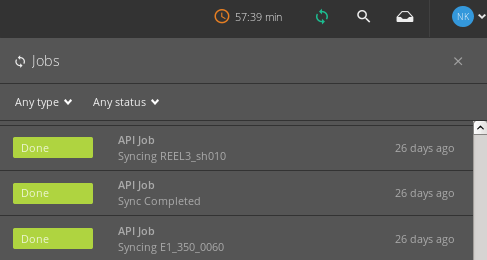
You can however see if the script is running or if it has finished or failied in your ftrack session.
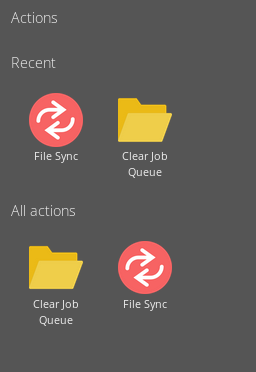
The file-sync action can be found in the ‘Actions’ window of Ftrack
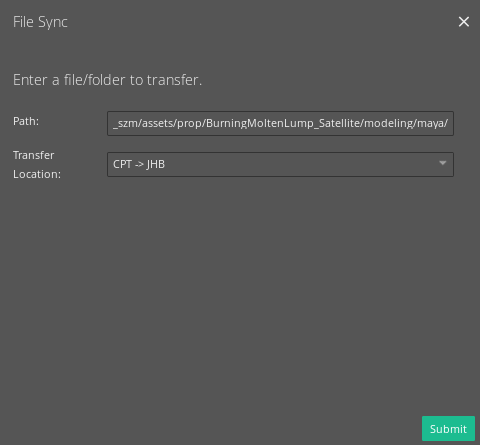
In the file-sync menu, copy-paste the path of the file or folder to sync, then select the direction the file should travel. CPT->JHB or JHB->CPT and hit submit.
The job queue in ftrack will give an update of the progress of sync.