Client Review System
Loco VFX uses a local installation of ftrack. As a result, clients do not have access to the media uploaded by the artists. This makes client reviews tedious and gathering notes and feedback difficult. A solution such as CineSync is ideal, but comes at a price.
The Ftrack cloud server (a remote ftrack installation) supports client reviews natively. It allows clients to view media and give notes in an easy and secure environment.
Our client review system tries to leverage the benefits of the ftrack cloud server while keeping costs at a minimum.
Setup
- A single user ftrack cloud account
- An action running locally that syncs the local client review session with the remote cloud account
- An action running locally that syncs the feedback from the remote cloud account to the local ftrack session.
Syncing the Client Review Session
You can watch this video to learn about how create a client review session in Ftrack.
Once you have created your client review session, click on the session and select ‘Actions’ from the drop down menu.
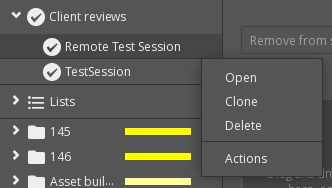
When you click on Actions, these actions should pop up on your screen.
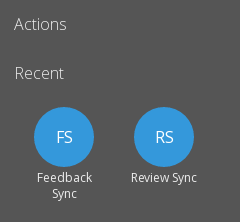
Select the ‘Review Sync’ action. This will start the sync.
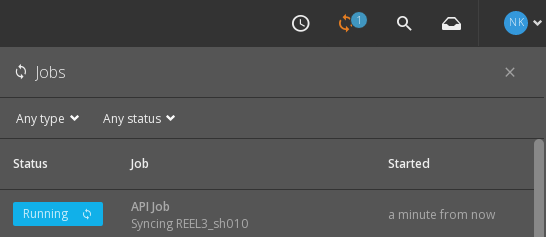
The progress of the sync can be seen by clicking the ‘jobs’ icon in the top right corner of your Ftrack browser.
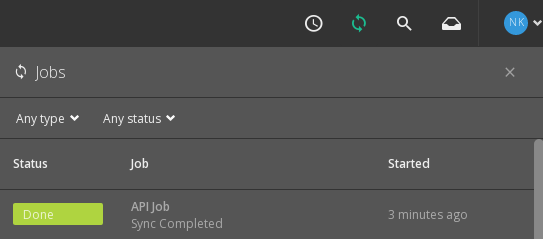
Once the sync is completed, go over to the ftrack cloud account. Sign in and navigate to your project. A client review session that mirrors your local client session will be available to you.
You can now add clients as collaborators and send invites for the client review. Once again, you may refer to the video mentioned above on how to do this.
Syncing the Client Feedback
The client feedback sync is a two step process.
- Watch this video to learn transfer feedback from the client session.
The client review session as seen by the clients is a separate entity from the Ftrack account. As a result, any information that the client adds to this review session must be transferred back to the Ftrack account.
Note
The feedback is transfered to our cloud Ftrack account. Proceed with step 2 to transfer and update our local Ftrack server.
2. In the local Ftrack session, navigate to the review session once again. Select ‘Actions’ from the drop down menu.
Select ‘Feedback Sync’ Action from the actions that pop up on your screen.
This will sync the feedback from the cloud Ftrack account to the local Ftrack server. It will update the status of the tasks to either ‘Review Changes’ or ‘Approved’ depending on the feedback. Asset Versions will be also be updated with the client’s notes.