Shot Ingestion
Creating an Ftrack Project
Before you start with the shot ingestion process, make sure the corresponding project exists on Ftrack. To create an ftrack project, simply go to the ftrack page, click on ‘Projects’ in the top left corner and click on the “Create new project” button.

Now a UI will pop up on your screen.
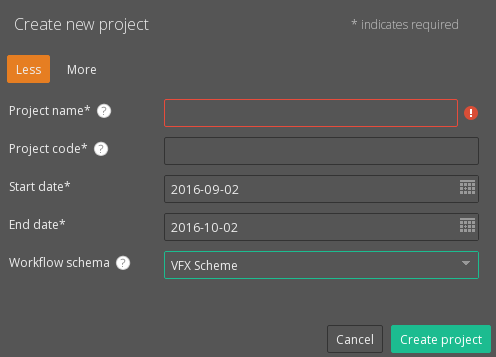
Type in the project name, select the workflow schema and click on ‘Create’.
Note
- Make sure there are no spaces in your project name. Ideally, your project name should be all lower case. Use an underscore (‘_’) to add a space between words.
- Please select “VFX Scheme” as the workflow schema.
When a project is created on ftrack, the corresponding folder structure in automatically created on disk.
The template folder structure is:
Project Drive: /data/production/<project_name>
<project_drive>/assets
<project_drive>/assets/3d
<project_drive>/assets/artwork
<project_drive>/assets/hdri
<project_drive>/production
<project_drive>/production/approvals
<project_drive>/production/editorial
<project_drive>/production/io
<project_drive>/production/meetings
<project_drive>/production/schedule
<project_drive>/reference
<project_drive>/shots
<project_drive>/template_files
Hiero Workflow
Shot ingestion through hiero is a 2 step process.
First, use the ftrack plugin in hiero to create shots in Ftrack.
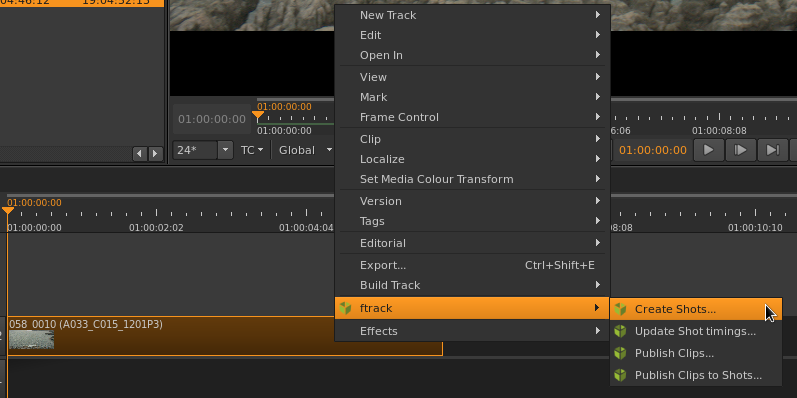
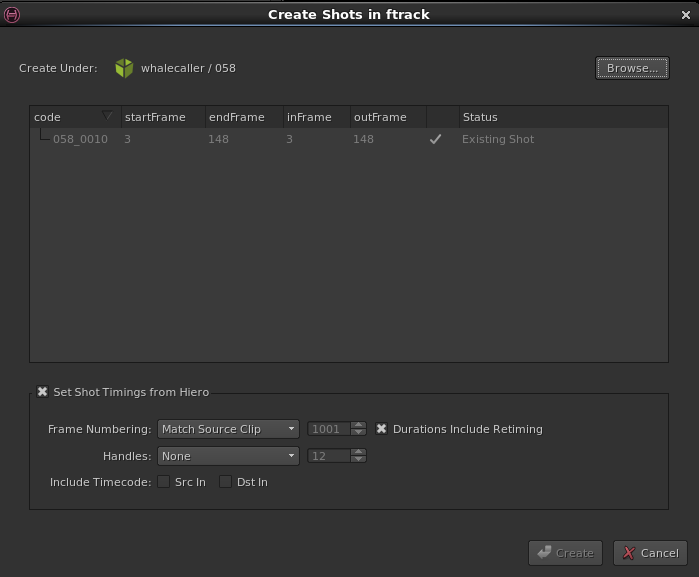
Second, use heiro to export dpx images and a nuke script to disk.
Right click on the shot in the timeline and select export.
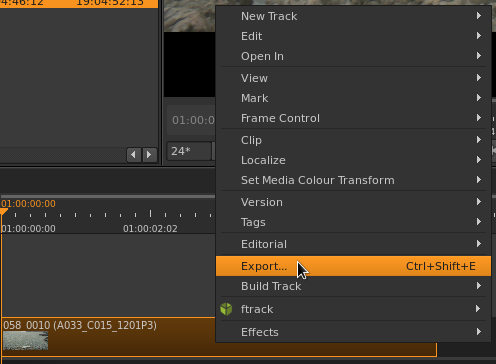
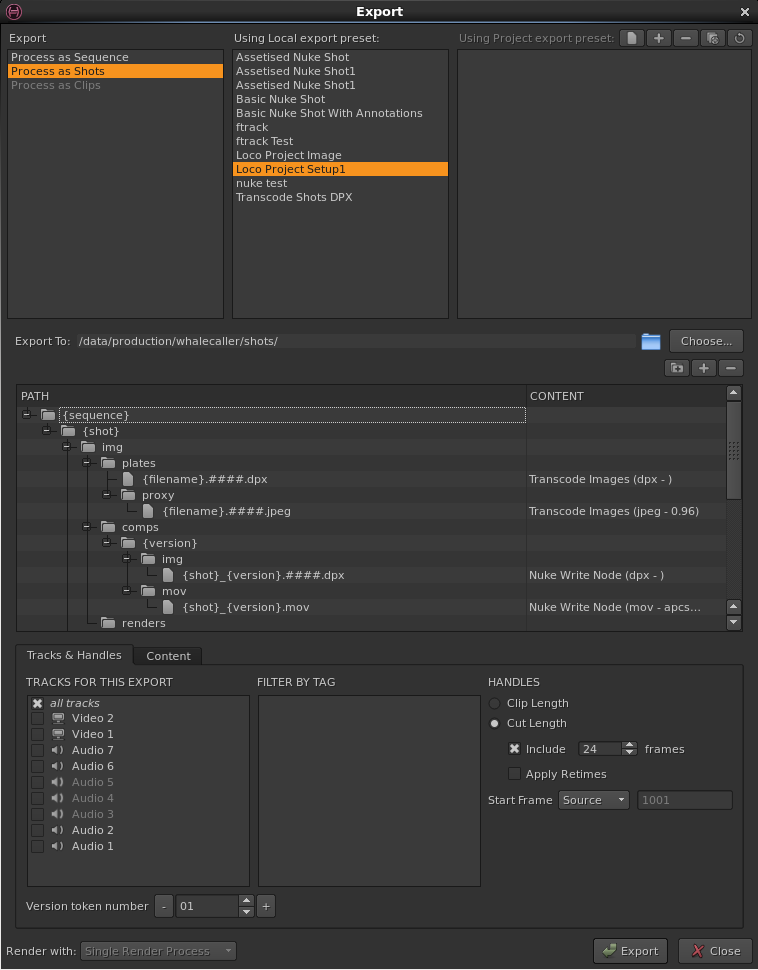
When the export window pops up on the screen, select the appropriate preset.
The “export to” path should be <project_dir>/<project_name>/shots
eg. /data/production/ef_coiled/shots
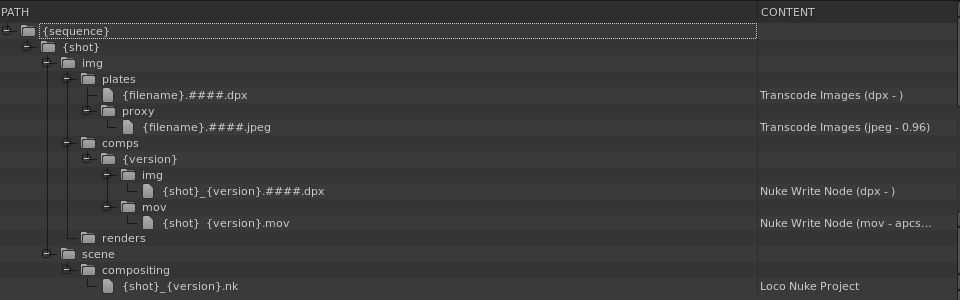
The preset structure should be
Note
Don’t worry about creating task folders in heiro. Creating a task in ftrack, will automatically create a task folder for that shot on disk.
Make sure to select the ‘Loco Nuke Project’ in the ‘Content’ column for the ‘.nk’ file.

Select the appropriate read and write nodes that should be included in the nuke file.
Now click on export. This will export the dpx images as well as the nuke file.
Ftrack workflow
Sometimes creating shots through Heiro may not be an option. In this case, you can batch create shots in ftrack using the ‘Batch Create’ action.
Navigate to your project folder in ftrack. Click on ‘Actions’ in the context menu. Select the ‘Batch Create’ action.
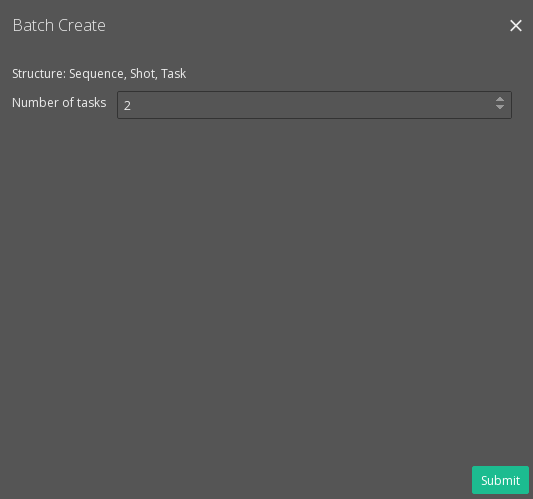
A UI should pop up on your screen. Select the number of tasks you’d like to create per shot and click ‘Submit’
Once you hit submit, a second UI should pop up asking for further options.
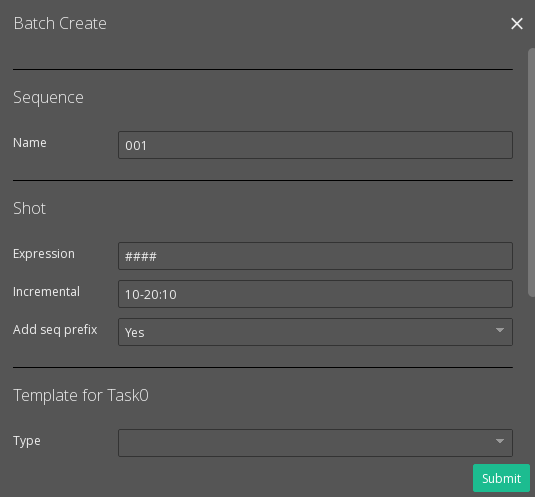
Add a sequence name. In the ‘Expression’ box under shots, the ‘#’ denotes the padding. So ‘####’ would mean shots will be created as 0010, 0020.
In the Incremental box, 10-20:10 indicates shots would be create from 10 till 20 with an increment of 10. So, in this case only 2 shots will be created, 0010 and 0020.
Adding a sequence prefix will name the shots 001_0010 and 001_0020. By default, this is set to ‘Yes’
Now select the tasks you want to create for all the shots. You can add a bid for each task as well.
Finally, the UI will ask you if you would like to create another sequence. If you are done creating shots you can select ‘No’ and the UI will go away. If you would like to create another sequence then select ‘Yes’, hit submit and repeat the above process.
Note
Creating a task in ftrack will create the corresponding folder structure on disk. If there
are template files defined for the task, then they may be copied for the shots. Currenly, the compositing and rotoscoping tasks have template files.
In this workflow you have to copy the media to the image folder. The media folder is located at
<project_dir>/shots/<shot_dir>/img/plates/